
Developing reliable posture tips while working from home becomes increasingly important for remote workers who spend long hours seated in improvised setups, because the body gradually adapts to whatever position it is most frequently placed in, meaning that even slightly misaligned home posture can compound tension in the neck, shoulders, lower back and hips in ways that feel subtle in the beginning but eventually evolve into constant discomfort, reduced concentration, aching joints or headaches that interfere with work performance.
Working from home introduces unique ergonomic challenges that traditional offices are often designed to counteract, yet many people assume posture is merely about “sitting up straight” when, in reality, proper posture depends on how your chair height, monitor placement, desk position, foot support, lighting balance, arm angles and general work environment collectively interact with the natural alignment of your spine, and therefore small, strategic adjustments can dramatically improve both comfort and safety throughout the workday.
Understanding posture tips while working from home requires learning how to read your body’s subtle discomfort signals, because tension often appears gradually rather than dramatically, and recognizing when your shoulders are creeping upward, when your chin is jutting forward, when your hips are rotating unevenly or when your screen distance forces you into a squinting posture enables you to correct these issues before they transform into chronic pain patterns.
A safe, ergonomic setup does not demand expensive equipment; instead, it depends on thoughtful alignment, neutral joint positions, timely micro-breaks, supportive seating surfaces, stable monitor placement and gentle stretching sequences that counterbalance the static nature of desk work.
This detailed guide provides a complete breakdown of home posture essentials, including measurement-based ergonomic setup guidance, text-based setup diagrams, micro-break routines, stretches to relieve tension, posture cues to maintain alignment throughout the day and a final checklist to help remote workers reinforce these habits consistently.
Why Posture Matters When Working from Home
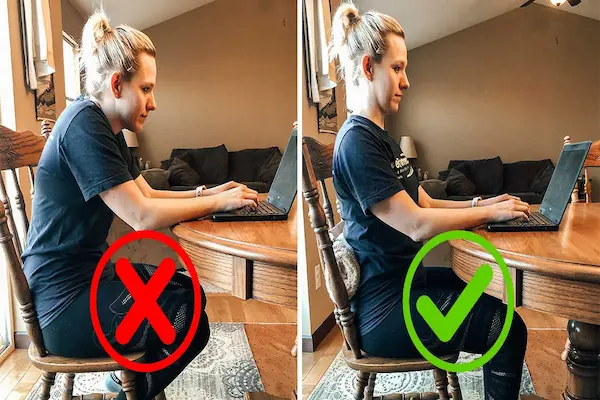
Many remote workers underestimate how dramatically posture impacts productivity, comfort and long-term physical health, especially because posture issues emerge slowly and silently when people spend hours seated without noticing that their shoulders are rounding forward, their pelvis is tilting backward, their lower back is flattening or their neck is constantly bending down toward a low laptop screen. Proper home posture supports efficient breathing, reduces muscular strain, improves circulation, stabilizes the spine and encourages more sustainable energy levels throughout the day, while poor posture encourages physical compensation patterns that transfer stress into areas not designed to carry continuous load. When the body is correctly aligned, concentration remains steadier, tension headaches occur less frequently and joints operate within comfortable ranges, allowing remote workers to navigate long hours at the computer with significantly less discomfort.
Because homes rarely offer dedicated ergonomic furniture, remote workers often sit at kitchen tables, couches, beds, low coffee tables or makeshift desks, and each of these environments can encourage unhealthy posture unless adjustments are made. Understanding posture tips while working from home gives you the ability to transform nearly any room into a safer workspace by modifying chair height, adjusting monitor placement, creating stable arm support and balancing lighting to reduce forward-leaning patterns. Once these adjustments are applied, the difference becomes noticeable not only in how your body feels physically but also in how much mental clarity you sustain during periods of concentrated work.
Core Principles of Healthy Home Posture
Having strong posture while working from home does not require memorizing complex anatomy or rigid rules, but rather understanding a few ergonomic fundamentals that influence how your body remains aligned during long sessions. Healthy posture begins with a neutral spine, which means allowing your natural curves to exist rather than forcing your back into a straight, uncomfortable line, because the spine’s shape is meant to absorb force and support movement. Positioning your shoulders slightly back and downward prevents tension from building in the upper trapezius muscles, while keeping your chin relaxed and aligned with your sternum helps reduce strain on the neck. Ensuring your hips remain level, your knees form roughly ninety-degree angles and your feet stay grounded creates a stable base that supports your entire upper body.
Key Elements of a Neutral Sitting Posture
- A gentle S-shaped spinal curve supported by the chair.
- Shoulders relaxed downward rather than lifted or rotated forward.
- Hips positioned fully back into the chair seat.
- Knees bent between 90 and 100 degrees with no compression at the back of the legs.
- Feet firmly planted on the floor or a stable footrest.
- Chin aligned with the chest instead of jutting forward.
- Wrists kept neutral rather than angled upward while typing.
Signs Your Posture Needs Adjusting
- Your neck feels tight by the afternoon.
- Your shoulders rise toward your ears without noticing.
- Your lower back becomes sore from prolonged sitting.
- Your eyes strain or water due to incorrect monitor height.
- Your feet dangle or slide forward because the seat is too tall.
Measurement Guide for an Ergonomic Setup
Choosing the right ergonomic setup requires measurement-based adjustments that ensure your chair, desk and monitor placement support healthy posture rather than force your body to adapt to poorly sized furniture, especially since every person’s height, limb length and workstation layout differ. Following these measurement principles can instantly improve comfort.
Chair Height Measurement
- Sit all the way back in the chair with hips anchored to the backrest.
- Adjust chair height so that your knees are level with or slightly below your hips.
- Ensure your feet rest fully on the floor; if they do not, add a footrest.
- Allow 2–3 fingers of space behind the knees to prevent circulation compression.
Desk Height Measurement
- Your elbows should bend at approximately 90 degrees while typing.
- Forearms should float parallel to the floor without reaching upward or downward.
- If the desk is too high, raise your chair and support your feet.
- If the desk is too low, elevate the desk using risers or books.
Monitor Placement Measurement
- Position the monitor at an arm’s-length distance.
- Align the top one-third of the screen with eye height to reduce neck bending.
- Tilt the monitor slightly upward to support neutral head posture.
- If using a laptop, raise it with books and use an external keyboard.
Text-Based Setup Diagrams
These descriptions mimic ergonomic diagrams to help you visualize proper alignment without images.
Basic Desk Setup Diagram
- Feet flat on the ground.
- Knees at 90 degrees.
- Hips seated deeply with lumbar support.
- Shoulders relaxed and gently retracted.
- Monitor directly in front, arm’s-length away.
- Top third of the screen at eye height.
- Keyboard close enough to prevent forward reaching.
Improvised Laptop Setup Diagram
- Laptop elevated using stacked books.
- External keyboard placed at elbow height.
- Pillow behind the lower back for lumbar support.
- Feet supported by books or a footrest if chair is tall.
Standing Desk Setup Diagram
- Monitor at eye level without requiring neck extension.
- Elbows bent 90 degrees while typing.
- Feet grounded evenly without locking knees.
- A cushioned mat beneath feet for comfort.
Micro-Breaks to Protect Your Posture
Micro-breaks are essential posture tips while working from home because the human body is not designed to remain still for long periods, and taking short, frequent breaks prevents joint stiffness, reduces muscular fatigue and refreshes your posture awareness before discomfort sets in.
Micro-Break Timing Guidelines
- Every 20 minutes: look 20 feet away for 20 seconds.
- Every 30–40 minutes: stand and reset your posture.
- Every hour: stretch your shoulders and neck.
- Every 2 hours: walk for 2–3 minutes.
Micro-Break Activity Ideas
- Roll shoulders backward and downward.
- Bend neck gently side to side.
- Stand and raise arms overhead to lengthen the spine.
- Perform slow hip circles to relax lower-back muscles.
- Stretch wrists and forearms between typing sessions.
Stretches to Reduce Neck and Back Tension
Stretching plays a critical role in maintaining healthy posture because desk work often tightens the chest, shortens hip flexors, weakens the upper back and forces the neck into awkward angles. Incorporating brief, gentle stretches reduces pressure on tissues and supports better alignment.
Neck and Shoulder Stretches
- Neck side bends held for 20–30 seconds.
- Neck rotations performed slowly and smoothly.
- Upper-trapezius stretch with hand on opposite side.
- Shoulder opener by clasping hands behind you.
Upper Back and Chest Stretches
- Doorframe chest stretch for tight pectorals.
- Seated thoracic twist to loosen mid-back rotation.
- Gentle cat–cow movements seated or standing.
Lower Back and Hip Stretches
- Hip-flexor stretch with one foot forward.
- Hamstring stretch with extended leg.
- Glute stretch seated by crossing one ankle over the knee.
Using Household Items for Ergonomic Support
Creating an ergonomic setup does not require specialized tools; many posture adjustments can be made using everyday household items, making good home posture achievable for anyone regardless of budget or equipment availability.
Household Ergonomic Solutions
- Rolled towel as lumbar support.
- Books stacked to raise a monitor or laptop.
- Box or stool as a footrest.
- Pillow to increase chair height if seat is too low.
- Baking sheet or large book as a stable lap desk.
Lighting, Eye Comfort and Posture Alignment
Poor lighting forces the body into compensatory positions, such as leaning forward or squinting, which compromises posture. Correct lighting reduces eye strain, supports upright alignment and improves your overall working comfort.
Lighting Adjustments
- Position light sources beside the screen to reduce glare.
- Avoid bright overhead lights that reflect harshly.
- Match screen brightness to room lighting.
- Use warm light in the afternoon to reduce tension.
Breathing and Core Support
Breathing deeply supports posture because diaphragmatic breathing encourages rib expansion and relaxed shoulders, while shallow upper-chest breathing tightens the neck and upper back.
Breathing Reset Technique
- Inhale calmly through the nose, expanding the lower ribs.
- Exhale slowly while lowering the shoulders.
- Repeat several times during micro-breaks.
Simple Core Engagement
- Lightly draw the belly inward while maintaining relaxed breathing.
- Keep ribcage stacked above hips.
- Avoid rigidly tensing the abdomen.
Behavioral Cues to Maintain Posture
Behavioral cues help you maintain home posture automatically by linking posture corrections to everyday actions, reducing the need to constantly remember adjustments.
Daily Posture Cues
- Reset shoulders after sending an email.
- Check chin alignment before joining calls.
- Relax jaw after completing intense tasks.
- Do one stretch after each meeting.
- Take a standing break before lunch.
Daily Posture Checklist
- Chair height adjusted correctly.
- Monitor placed at eye level.
- Keyboard positioned close to elbows.
- Feet supported firmly.
- Lighting free from glare.
- Shoulders relaxed downward.
- Neutral spine maintained.
- Micro-breaks taken consistently.
- Stretch routine performed at least once per day.